Manage and de-risk your API keys with new Security Center
Sasha Blumenfeld ·

Dealing with a leaked key is stressful. The fewer old keys you have, the fewer can leak. That’s why we built Security Center. It’s one place to see every key across your workspaces, spot the risky ones, and disable, archive, or cap hundreds at once.
It’s available on all OpenRouter plan types. Try it under Settings > Security.
1,000+ keys across 85 employees
The obvious defense against leaked keys is to have fewer of them. So we audited our own OpenRouter org, and because we build OpenRouter on OpenRouter, there was a lot to audit.
We found over 1,000 active keys for 85 employees. Many had no spend limit and 168 hadn’t been used in months, belonging to employees who had completely forgotten about them.
If a team our size ended up with this much key sprawl, you probably have some too.
What the Security Center shows you
The Security Center has three tabs: Overview, Key safety, and IP allowlist.
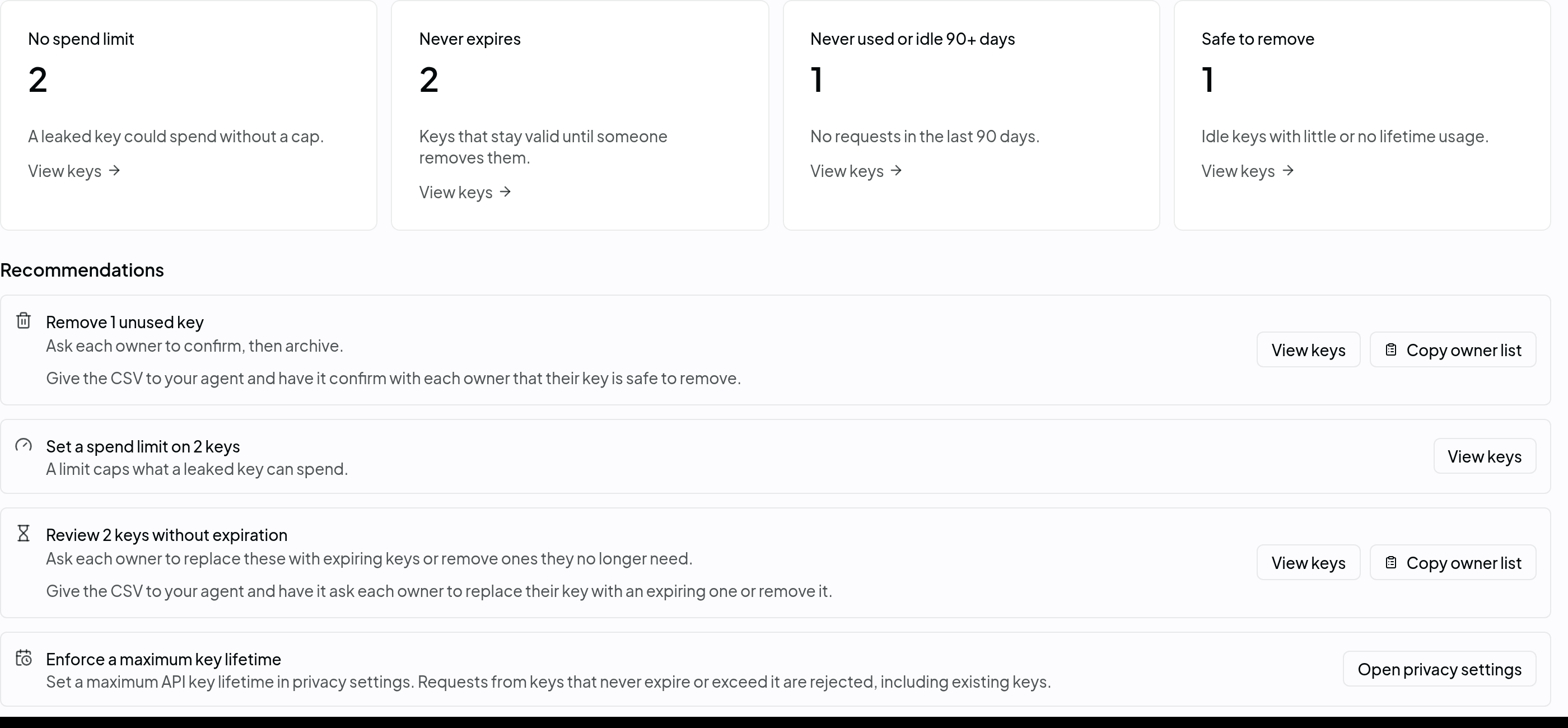
The Overview counts your keys in four groups: no spend limit, never expires, unused or idle for 90+ days, and safe to remove. Below the counts, it lists recommendations for what to fix first:
- Remove unused keys. Ask each owner to confirm, then archive.
- Set a spend limit. A limit caps what a leaked key can spend.
- Review keys without expiration. Replace them with expiring keys, or remove the ones no one needs.
- Turn on key spend alerts. Get an email when a key crosses a share of its spend limit.
- Enforce a maximum key lifetime. Requests from keys that never expire, or outlive the limit, get rejected (existing keys included).
If nothing needs attention, the page says so.
Key safety: every key in one list
Key safety lists every key that can still make requests, across every workspace on your account. Until now, keys lived on each workspace’s own page. The list includes MCP and management keys, with owner, last use, spend limit, and expiration side by side. Admins see every key; members see the keys they created.
Each key gets a risk score based on what a leaked copy could do, which comes down to its spend limit and expiration.
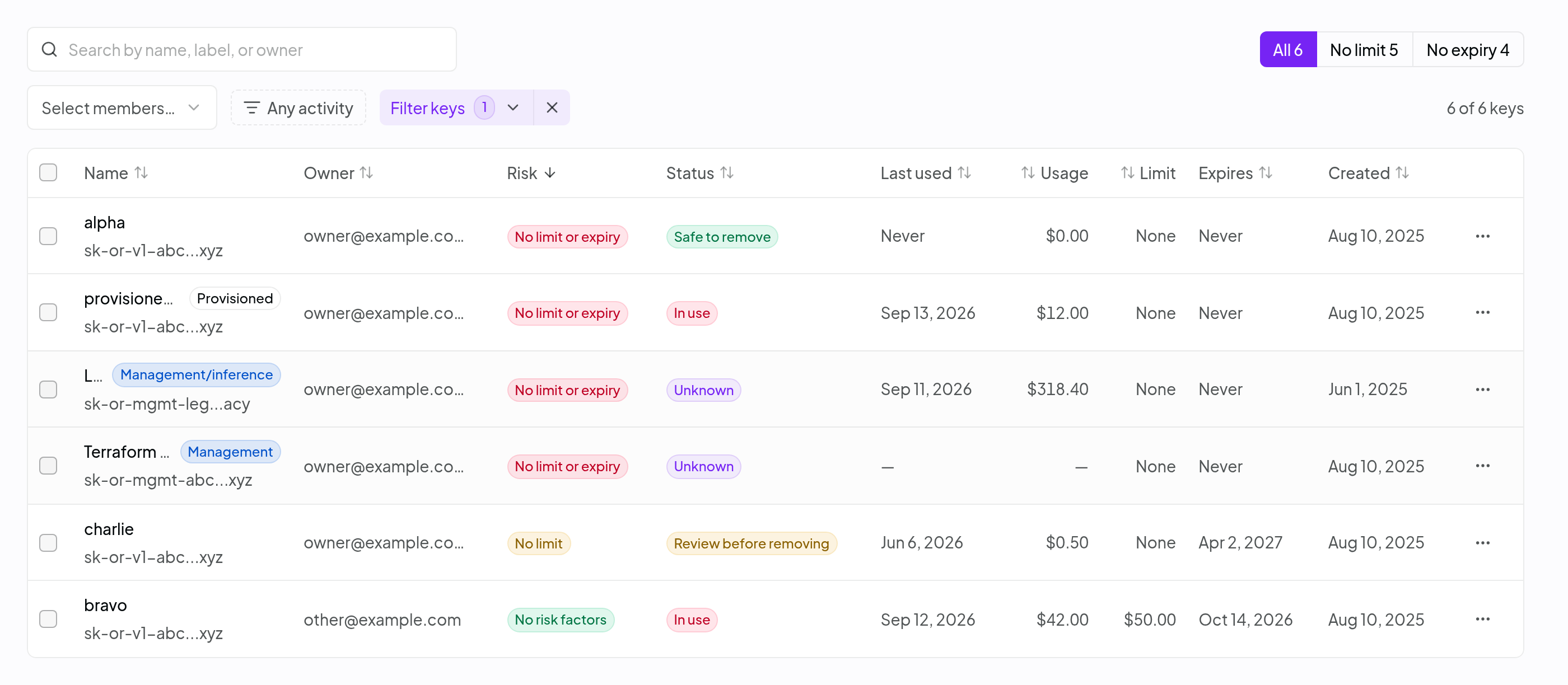
Usage sets a separate status label. A key with no recorded usage, or idle for six months with under $1 of lifetime spend, is marked ‘Safe’ to remove. Recent or meaningful usage is ‘In use’. Keys in between get labeled under ‘Review’ meaning they’ve been used, but not much and not lately. For example, $3 of lifetime spend and no requests in five months. Someone probably wired that key into something once, so check who depends on it before you archive.
Clean up in bulk
You can also take bulk actions. Filter by risk or idle time, then select up to 500 keys and disable, archive, or add a spend limit to all of them. Disabling is reversible, archiving isn’t, and adding a limit never overwrites one someone already set.
Admins can also copy a CSV of any recommendation’s keys and owners to hand to a script or an agent.
The Security Center works from key metadata, spend, limits, and expiry. It never reads your prompts or completions.
Lock keys to your own network
The IP allowlist, which used to live in privacy settings, now has its own tab. It controls where a key works. Add the addresses your servers, office network, and CI runners call from, and OpenRouter rejects any request from an address outside that list with a 403 Forbidden.
The list applies to every key in your account or organization, including the ones you created years ago, and changes take effect immediately. Entries can be a single IPv4 or IPv6 address or a CIDR range, each with a label so you remember what it covers.
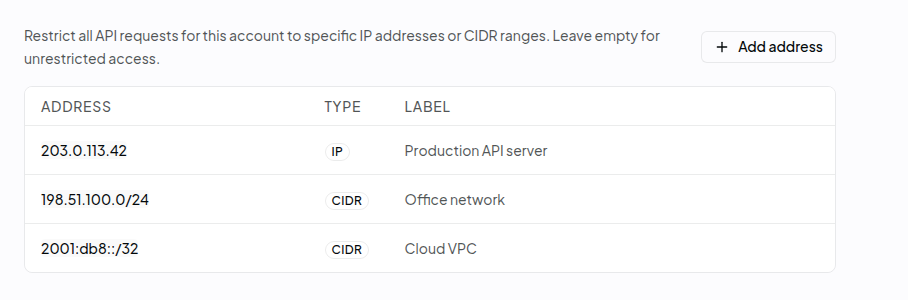
The IP allowlist is available to organization admins on Enterprise plans.
How we contain our key risk
Since our audit we’ve implemented some best practices to keep our keys in check:
- Clean up on a schedule. Start with Safe to remove keys, confirm with their owners, then archive.
- Check keys when someone leaves. Filter by owner and archive or auto-revoke (via SCIM) the keys no one took over.
- Give every key a limit and an expiration. If a leak does happen, setting a cap and expiration contains the blast radius.
- Pin production keys to known addresses. If you’re on a Pro or Enterprise plan, put your servers and CI runners on the IP allowlist.
- Rotate keys that stay in use. The key rotation guide walks through the order.
Getting started
The Security Center is available on all plan types. You can find it under Settings > Security.
Check out the docs to learn more.